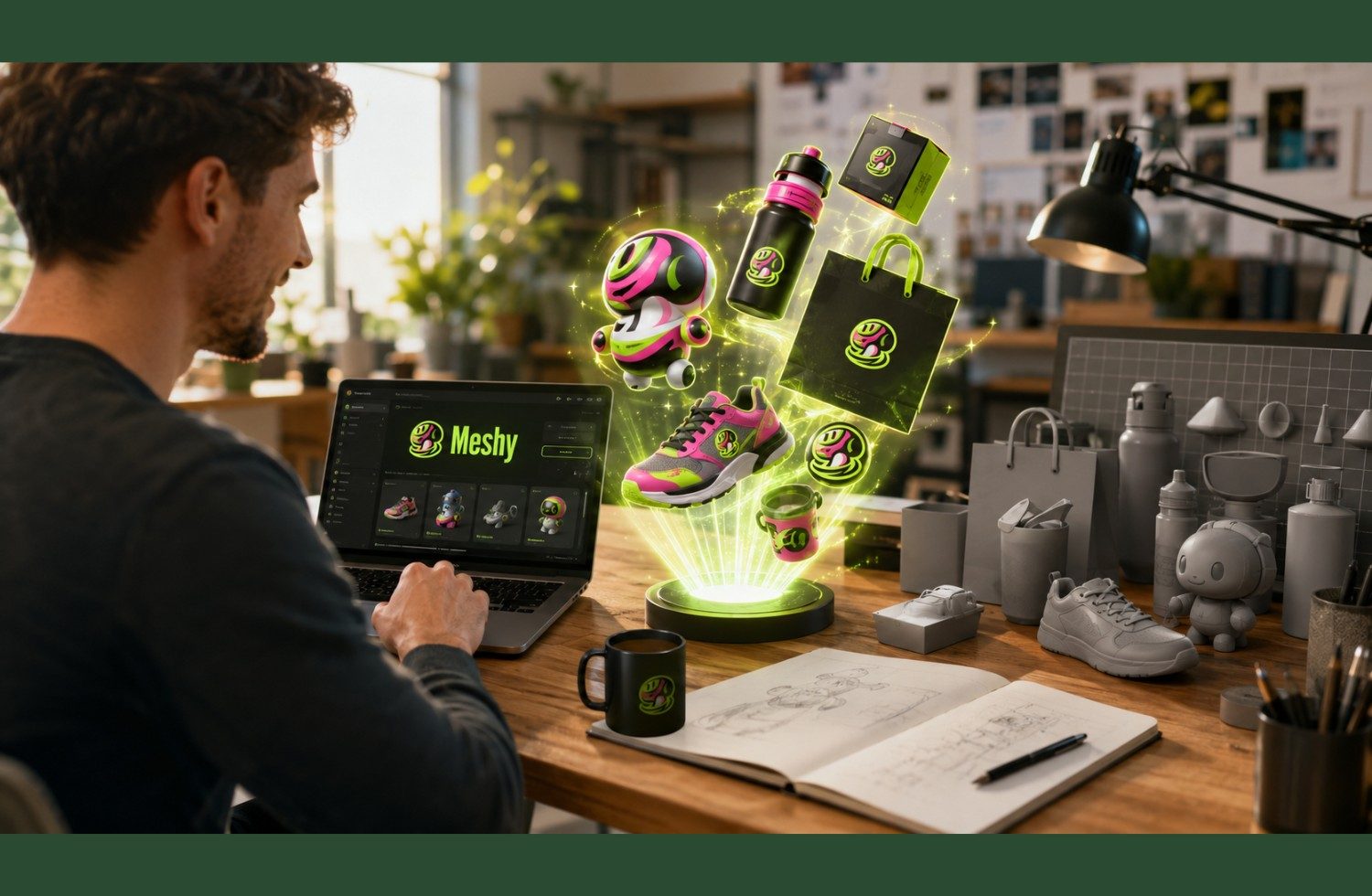
Creating 3D printable models is becoming more accessible with AI-powered tools that transform written ideas and reference images into three-dimensional objects. Meshy AI helps users generate 3D models, check their geometry, prepare files for printing, and export them into formats compatible with popular 3D printing software. This makes it useful for beginners, hobbyists, designers, and makers who want to create custom figurines, decorative objects, miniatures, and personalised gifts without modelling every detail manually.
However, generating a model is only the beginning. A successful print also depends on the model geometry, physical dimensions, wall thickness, printer capabilities, and slicing settings. Understanding each stage can help you turn an AI-generated design into a physical object with fewer printing problems.
What Is Meshy AI and How Does It Help with 3D Printing?
Meshy AI is an AI-powered 3D creation platform that transforms text prompts and reference images into three-dimensional assets. Its 3D printing tools support model inspection, printability analysis, automatic mesh repair, model splitting, and export for compatible printing workflows.
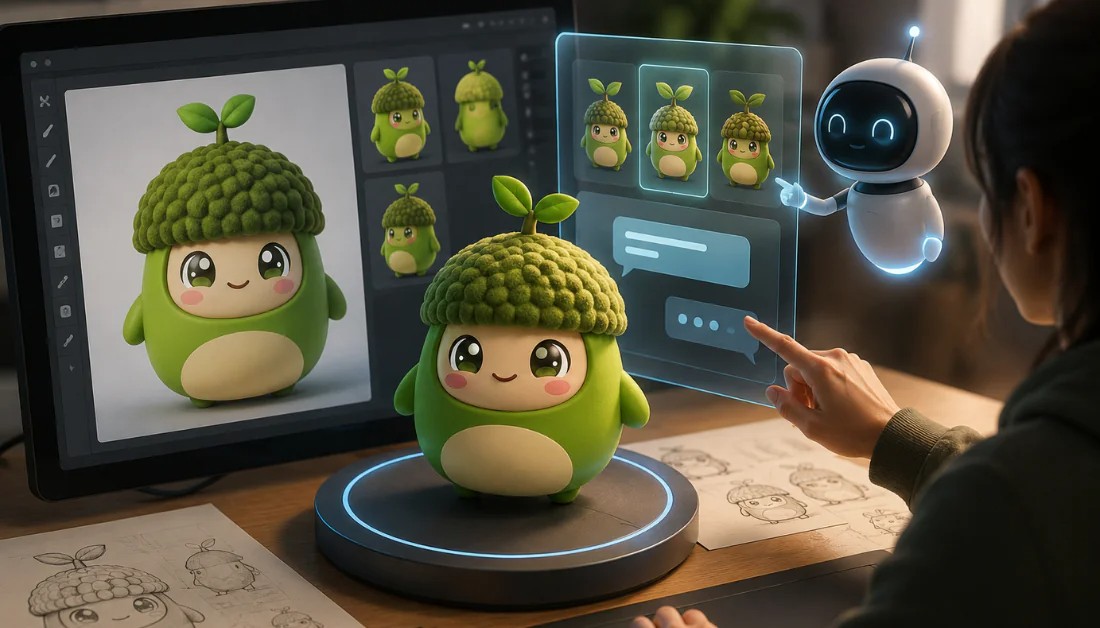
Instead of starting with a blank modelling workspace, you can describe your design or upload an image and use the generated model as a starting point. This can be particularly helpful for decorative sculptures, tabletop miniatures, character figurines, custom ornaments, and concept models.
For objects that require precise dimensions or mechanical functionality, additional editing in CAD or traditional 3D modelling software may still be necessary.
Step One: Decide What You Want to Print
Before generating a model, establish its purpose. A small decorative figurine has different requirements from a phone stand, storage container, or functional component.
Consider the final size, intended use, level of detail, and whether the object needs to support weight or withstand repeated handling. These factors influence the shape you should generate and how much refinement it will require.
For a first project, choose something relatively simple, such as a desk ornament, a small animal figurine, or a decorative keychain. Simple designs make it easier to learn the workflow and identify potential printing problems.
Step Two: Generate a Model Using Text or an Image
Meshy provides text-to-3D and image-to-3D workflows. The best option depends on whether you already have a reference image or are starting with an idea.
Create a Model from a Text Prompt:
Text-to-3D is useful when you have a concept but no existing reference artwork. Describe the subject, proportions, shape, surface details, and artistic style as clearly as possible.
For example, you could use this prompt:
Create a small stylised sitting fox figurine with a large rounded tail, smooth sculpted surfaces, sturdy feet, simplified facial details, and a solid base. Design it for desktop 3D printing, avoiding thin unsupported features and fragile protrusions.
This prompt communicates both the visual style and some physical design considerations. It does not guarantee a print-ready model, so inspect the generated result before exporting it.
If the shape is not quite right, refine the description and generate another version rather than immediately moving to printing.
Convert a Reference Image into a 3D Model:
Image-to-3D is useful when you already have a photograph, sketch, or concept illustration. Upload a clear image with a simple background and a fully visible subject. Meshy recommends using sufficiently large, well-defined reference images to improve the generation process.
After generation, rotate the model to inspect its front, back, sides, top, and bottom. A reference image does not show every surface, so the AI must interpret hidden areas. These parts may need further editing to match your original concept.
Step Three: Inspect and Refine the Model
A model can look convincing in a preview while still containing geometry problems that interfere with printing. Examine its overall shape, connections between parts, small protrusions, and narrow features.
Pay particular attention to thin legs, fingers, antennae, pointed ears, and delicate decorative elements. Depending on the printer and material, these features may break during printing if they lack sufficient thickness or support.
Meshy includes a Remesh tool that can adjust mesh complexity and help manage file size. Its effect should be assessed carefully, because reducing geometry too aggressively can remove details you want to preserve.
For detailed figurines, prioritise retaining the important surface features while keeping the model manageable for your intended workflow.
Step Four: Check Printability and Repair Geometry Problems
One of the most important stages is checking whether the model geometry is suitable for slicing. Meshy’s Analyze Printability tool checks for issues such as holes, non-manifold edges, non-watertight surfaces, and degenerate faces. Its Repair Printability tool can attempt to correct detected problems.
A watertight mesh forms a closed surface that slicing software can interpret as a solid object. Open boundaries and invalid geometry can cause unexpected results or prevent a model from slicing correctly.
A practical checking process includes the following steps:
-
Open your completed model in the Meshy workspace.
-
Select the printability analysis option from the available printing tools.
-
Review the reported warnings and errors.
-
Use automatic repair if necessary.
-
Inspect the repaired model and run another check before exporting.
Automatic repair can save time, but it does not guarantee a perfect result. Complex designs may still require manual corrections in a 3D modelling application.
Step Five: Split Large Models into Printable Parts
Some models exceed the build volume of a printer. Others contain several sections that are easier to print separately.
Meshy’s Auto Split feature can divide supported models into separate components for printing. This can help with oversized figurines, multi-part sculptures, and designs that benefit from separate colour sections or different print orientations.
For example, a character’s body, accessories, and base could be printed as separate pieces and assembled afterward. Splitting may also reduce support requirements by allowing each component to be positioned more effectively.
Before dividing a model, consider how the pieces will fit together. Connection points should be sufficiently strong, and the design should account for the tolerances of your printer and material.
Step Six: Set the Correct Dimensions
AI-generated models may not automatically match your required real-world dimensions. A figurine that looks appropriately sized in a 3D viewer might export at an unsuitable height or width.
Use Meshy’s resizing controls to set the intended dimensions before exporting. The platform’s printing workflow supports resizing models for physical production.
| Project Type | What to Check |
|---|---|
| Small figurine | Height, base size, and delicate details |
| Desk ornament | Overall dimensions and stability |
| Keychain | Hole diameter, thickness, and attachment strength |
| Decorative sculpture | Printer build volume and support requirements |
| Multi-part model | Connector dimensions and assembly fit |
| Functional object | Measurements, tolerances, and load requirements |
For functional components, measure the relevant parts instead of relying on visual estimates. If precise fit is important, consider producing a small test piece before printing the final object.
Step Seven: Export the Model in the Right Format
After inspecting and preparing your model, export it in a format supported by your printing workflow. Meshy supports common options such as STL and 3MF, with other formats available for different modelling and visualisation purposes.
STL for Standard 3D Printing:
STL is widely supported by slicing applications and is a straightforward choice for many single-material prints. It stores the surface geometry but does not preserve the full colour and texture information used in a multi-colour workflow.
3MF for Additional Printing Information:
3MF can preserve additional model information, including colour and multi-part data when supported by the application and export workflow. It is worth considering when preparing compatible multi-colour prints.
| Format | Common Use |
|---|---|
| STL | General-purpose single-material printing |
| 3MF | Compatible workflows involving colour and additional print information |
| OBJ | Model exchange and selected printing workflows |
| GLB | Inspecting and sharing 3D assets before printing |
If your goal is a physical object, select the format according to your slicer and printer. For a multi-colour design, confirm that the export workflow preserves the required colour assignments.
Step Eight: Prepare the File in Slicing Software
A slicer converts your 3D model into instructions that a printer can follow. Compatible options include Bambu Studio, OrcaSlicer, UltiMaker Cura, and other applications supported by your printer.
Import the exported file and confirm that it opens correctly, appears at the intended scale, and fits within the printer’s build volume.
Review the following settings before generating the print file:
-
Layer height: Affects surface detail and printing time.
-
Infill: Controls the internal structure of the object.
-
Supports: Help hold up overhanging features during printing.
-
Wall thickness: Influences strength and durability.
-
Print orientation: Affects support requirements, surface quality, and strength.
-
Material selection: Determines suitable temperature and other printer settings.
The appropriate settings depend on the printer, material, and model. Use manufacturer recommendations as a starting point and adjust them to suit your project.
Step Nine: Print, Inspect, and Improve
Before printing a complex design, check the slicer preview for missing sections, unexpected holes, excessive supports, and delicate features. This is an important opportunity to catch problems before using material.
After printing, inspect the object for weak connections, surface defects, poor dimensional accuracy, and areas that need post-processing. Depending on the material and design, finishing may involve removing supports, sanding, assembling parts, or painting.
If the result does not meet your expectations, identify the cause before generating another model. Geometry problems may require a revised prompt or mesh repair, while rough surfaces may be improved by changing the layer height or print orientation.
Common Problems When Creating 3D Printable Models:
Even with AI assistance, some challenges can arise during the process.
| Problem | Possible Solution |
|---|---|
| The model has holes | Run printability analysis and repair the mesh |
| Thin parts break | Increase thickness or redesign delicate features |
| The model is too large | Resize it or split it into smaller parts |
| Small details disappear | Simplify tiny features or use finer printing settings |
| The slicer reports geometry errors | Inspect the mesh and export a repaired version |
| Separate pieces do not fit | Review dimensions and allow suitable assembly tolerances |
| The print requires excessive supports | Adjust the orientation or divide the model into parts |
Not every issue can be solved automatically. Some models benefit from additional editing in Blender or CAD software, particularly when exact dimensions or functional performance are important.
Helpful Tips:
Smart Tips:
Start with a simple design: Learn the process using a small, uncomplicated model before attempting intricate characters or complex structures.
Describe physical features in your prompt: Mention sturdy bases, thicker projections, and simplified details when they suit the intended object.
Inspect the model from every angle: Hidden surfaces may contain geometry issues that are not visible in the initial preview.
Run printability checks: Use the available analysis and repair tools before exporting the final file.
Confirm the scale: Check the dimensions in both the creation workspace and slicing software.
Choose your material early: Design details and wall thickness should reflect the material and printer you intend to use.
Review the slicer preview: A successful export does not guarantee a successful physical print.
Respect intellectual property: Make sure you have permission to reproduce protected characters, logos, or commercial designs, particularly if you plan to distribute or sell your prints.
Turn Your Ideas into Physical Creations:
Meshy AI can simplify the early stages of creating 3D printable models by transforming text descriptions and reference images into three-dimensional assets. Its printability checks, repair options, model-splitting tools, and export workflows help bridge the gap between digital design and physical production.
The key is to treat AI generation as one part of the process rather than the final step. Define the purpose of your object, generate a suitable model, inspect the geometry, confirm its dimensions, export the right file, and validate it in slicing software before printing.
With a careful workflow and a little experimentation, Meshy can help you explore custom figurines, decorative objects, personalised gifts, and many other creative projects without building every model from scratch.
